Scratch Disks
Setting Scratch Disks (also known as a temporary file cache) in AVD is critical to improving performance and stability for your students.
Did you know that not setting the scratch disks can cause several issues? These issues are not just in AVD!
- Disk read/write throttling, which slows down performance for everyone 🐢
- Filling up the C:\ drive, causing issues for other users 😠
- Filling up the local profile, on the C:\ drive, which causes issues for the current user 🤷🏻
Please review this guide on how to set Scratch disk for Photshop.
Text is too Small
Change UI Scaling
- Open Photoshop inside the AVD session
- Go to:
- Windows (AVD): Edit > Preferences > Interface
- Under UI Scaling, choose:
- Auto (Photoshop decides based on your display)
- 100% (default size)
- 200% (larger UI for high-resolution screens)
- Click OK
- Restart Photoshop to apply the changes
If scaling is still wrong, reset preferences, Reset Photoshop Preferences in AVD:
Option A: Keyboard Shortcut
- Close Photoshop
- While launching Photoshop in AVD, hold:
- Ctrl + Alt + Shift (Windows shortcut works in AVD)
- When prompted, click Yes to delete the settings file.
Option B: Manual Delete (AVD)
Teachers do not need to browse local folders. Instead:
- Close Photoshop
- Open File Explorer in AVD
- Navigate to:
- C:\Users\[Your AVD Username]\AppData\Roaming\Adobe\Adobe Photoshop
[version]\Adobe Photoshop Settings
- C:\Users\[Your AVD Username]\AppData\Roaming\Adobe\Adobe Photoshop
- Delete the Adobe Photoshop Settings folder
- Restart Photoshop (it will recreate default settings).
Curves, Levels, and Other Adjustments Not Displaying Properly
What’s Happening?
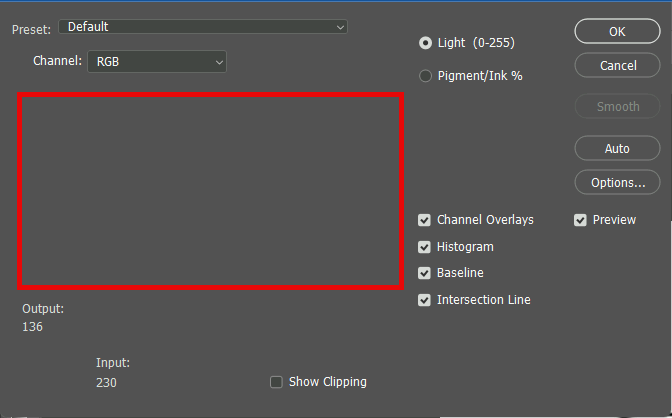
In the latest versions of Photoshop (26.10), some users may notice that certain tools under the Image > Adjustments menu — such as Curves, Levels, and others — may not display properly. Instead of showing sliders or controls, the window may appear as a blank box (see red box in screenshot).
This issue is known to Adobe and is being investigated. It appears to affect several tools in the Image > Adjustments menu, but not the adjustment layer versions of those tools.
Workarounds
✅ Use Adjustment Layers (Recommended)
You can still use Curves, Levels, and other adjustments by adding them as adjustment layers:
- In the Layers panel, click the half-filled circle icon at the bottom.
- Choose Curves, Levels, or another adjustment.
- This adds a layer that works the same way — and it’s even better because it’s non-destructive (you can change it later without affecting your original image).
If the panel looks blank at first, try clicking the adjustment layer’s thumbnail again — this usually refreshes the view.
Here is a full guide from Adobe.
✅ Use Camera Raw Filter (Optional)
If you’re comfortable exploring, the Camera Raw Filter offers similar tools to Image > Adjustments:
- Go to Filter > Camera Raw Filter
- Use the Tone Curve or Basic tabs to adjust brightness, contrast, and more
Additional Information
- This issue is not caused by anything you did.
- It’s not directly related to AVD, this issue is affecting other users in other contexts
- Our team has already tried all of Adobe’s recommended troubleshooting steps
- Our team has an open ticket with Adobe support
More Information
Adobe is aware of the issue and is working on a fix. You can follow updates on their official page here:
🔗 Adobe Photoshop Known Issues
